See the whole picture.
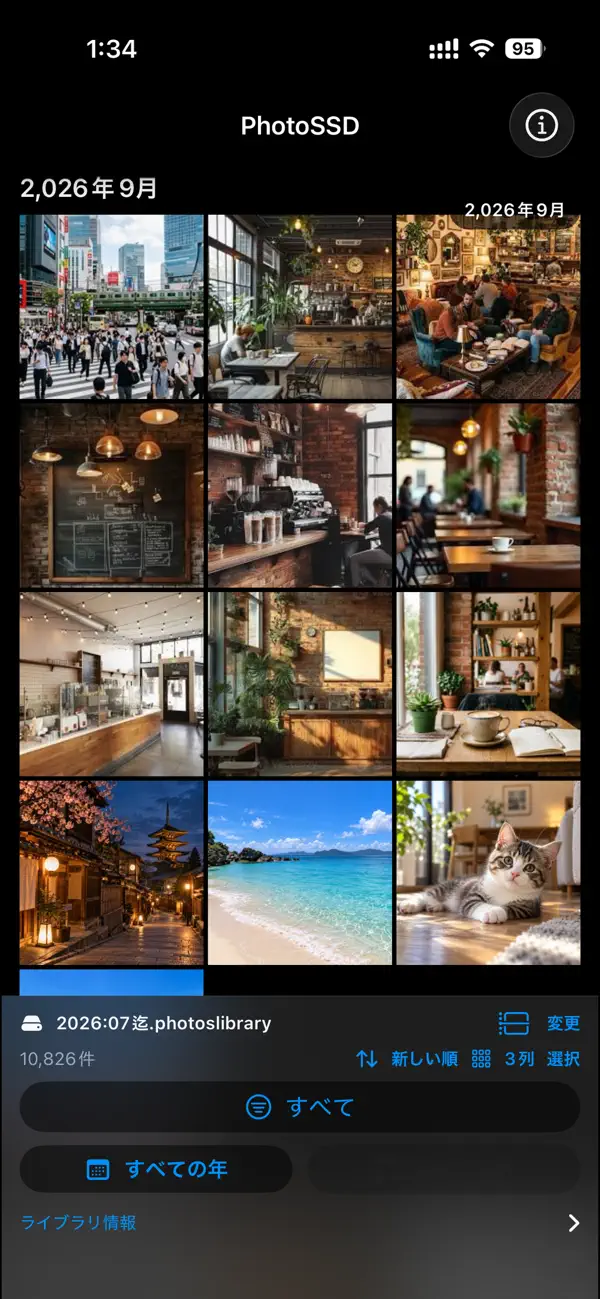
Browse a thumbnail grid and adjust the number of columns to find a view that works for you.
PhotoSSD / External SSD photo library viewer
Open your Apple Photos library (.photoslibrary) directly from a compatible external SSD. Browse on iPhone or iPad without copying the whole library to your device or uploading it to the cloud.
Check your local App Store for pricing and availability. iOS / iPadOS 17 or later.
Direct from your SSDKeep the library on your drive
No account requiredConnect, select, and explore
Processed on your deviceNo photo upload to a server
Made for your library
Browse a thumbnail grid and adjust the number of columns to find a view that works for you.
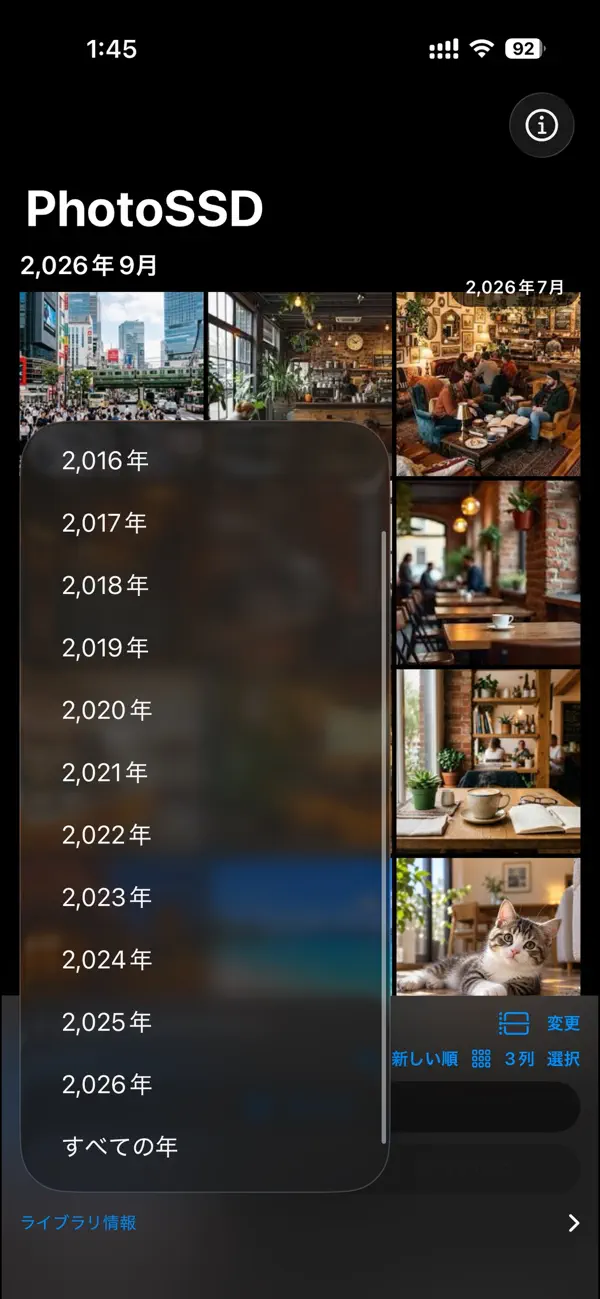
Explore your collection by year and month, and filter the types of photos shown.
Open a photo at full size and enjoy the details on your iPhone or iPad.
Inside PhotoSSD
Actual Japanese-language App Store screenshots. Select an image to enlarge.
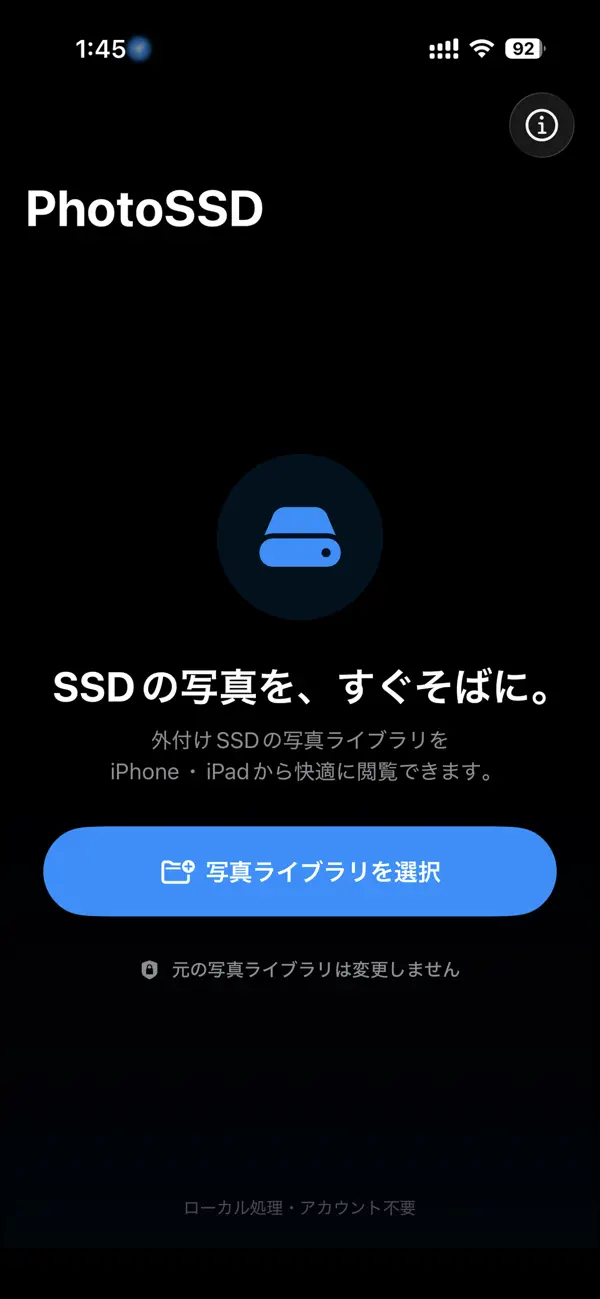

Getting started
Place a .photoslibrary created with Photos on Mac on a compatible external SSD.
Connect the SSD to your iPhone or iPad. Check that you can access the drive in the Files app.
Select the photo library on your SSD in PhotoSSD and start browsing.
Requires iOS 17.0 / iPadOS 17.0 or later and a compatible SSD and connection. Check the drive in Files before opening a library. Some connections require external power. Compatibility depends on the drive, library and device; no universal SSD or library-version compatibility is claimed.
Privacy, by design
No account required. Photos are processed on your device and are not uploaded to an external server.
See the privacy policy for details about saving to Apple Photos and device authentication.
Privacy ↗PhotoSSD is a viewer for Apple Photos libraries (.photoslibrary) created on Mac. It is designed for these libraries rather than general photo folders.
No account registration or cloud upload of your photos is required to use PhotoSSD.
First check that the SSD appears in the Files app. Check the cable, adapter, and power supply. If the problem persists, contact support with your device, OS, SSD, and connection details.
This website focuses on use with iPhone and iPad. The App Store lists macOS operation as unverified.
Is PhotoSSD right for you?
You have a .photoslibrary created with Apple Photos on Mac and want to browse it on a smaller device. PhotoSSD is built for this workflow.
Browse without importing the entire collection into your iPhone or iPad Photos library. PhotoSSD is a viewer; keep a separate backup of your important photos.
PhotoSSD does not require uploading the library to iCloud. If your original photos are only in iCloud, prepare the local library on your Mac first.
Your local App Store
Check local pricing, availability and the current app description. PhotoSSD lists English, French, German and Spanish among its supported languages. The screenshots above show the Japanese interface.
United Kingdom · Ireland · Deutschland · France · España · Other regions
Practical guides
Understand .photoslibrary files, prepare a drive, and check your connection before you start browsing.
Explore the PhotoSSD guides →Check your local App Store for pricing and availability. iOS / iPadOS 17 or later.